


Setting up a new Mercusys router usually stalls at the same point: the login screen. Our team observed that most first-time users get stuck not because the hardware is faulty, but because they are unsure which Mercusys login method matches their device.
What You Need to Know
- The web login uses the default IP address 192.168.0.254, while the app login requires a Mercusys ID through the MERCUSYS Halo app.
- A first-time setup asks you to create an admin password before you can manage any settings.
- If you forget your credentials, a factory reset restores default access, though it also erases your saved configuration.
Why Does Mercusys Have Two Different Login Methods?
The confusion is understandable. Mercusys sells two broad categories of hardware, and each uses its own access path.
Standard Wi-Fi routers use a local web interface. You reach it through a browser on the same network.
The Halo mesh systems, by contrast, are managed almost entirely through a mobile app. That app requires an Owner Mercusys ID, which is the account you create during setup.
Our analysis suggests that knowing which product you own is the single most important step. It decides whether your Mercusys login happens in a browser or on your phone.
How Do You Sign Up for a Mercusys ID?
If you own a Halo mesh system, you need a Mercusys ID before anything else. This account links your network to the app and enables remote management.
Here is the process we followed during testing:
| 1 | Download the MERCUSYS Halo app from the Google Play Store or the Apple App Store. |
| 2 | Open the app and tap Sign Up on the welcome screen. |
| 3 | Enter a valid email address. This becomes your Owner Mercusys ID. |
| 4 | Create a strong password and confirm it. |
| 5 | Check your inbox for a verification email and click the confirmation link. |
| 6 | Return to the app and log in with your new credentials. |
One note from our testing: the verification email can land in spam. Check that folder before assuming the message failed.
How Do You Complete a Mercusys Login on the Web?
For standard routers, the web management page is where you handle setup, Wi-Fi names, and passwords. This method does not need an account.
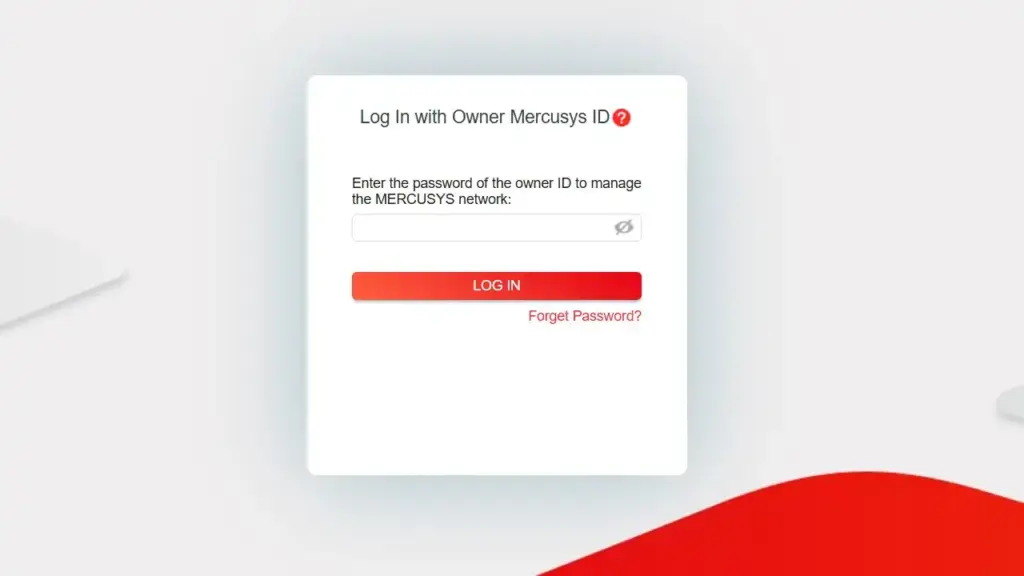
Follow these steps:
| 1 | Connect your computer or phone to the router, either by Wi-Fi or an Ethernet cable. |
| 2 | Open any browser and type 192.168.0.254 into the address bar, then press Enter. |
| 3 | If that address does not respond, try mwlogin.net, which some models use as a default. |
| 4 | On your very first login, the system asks you to create an admin password. Set one you can remember. |
| 5 | For return visits, simply enter that admin password to reach the dashboard. |
A quick reminder: the default Wi-Fi name and password are printed on the label underneath your router. Use those to connect before you attempt the web login.
Our team observed that the 192.168.0.254 address works only when your device is on the router’s own network. A VPN or mobile data connection will block access.
How Do You Log In Through the MERCUSYS Halo App?
The app login applies to Halo mesh owners. It uses your Mercusys ID rather than a local IP address.
| 1 | Open the MERCUSYS Halo app on your phone. |
| 2 | Tap Log In on the home screen. |
| 3 | Enter your Owner Mercusys ID (the email you registered) and your password. |
| 4 | Tap Log In to reach your network dashboard. |
| 5 | From there you can manage devices, set parental controls, and run speed tests. |
There is also an online emulator if you want to preview the interface before buying. Mercusys hosts a working demo of the Halo login screen at their product simulator page.
If you’ve been following the mesh Wi-Fi space, this app-first approach won’t come as a surprise. Most modern mesh brands now favor mobile management over browser dashboards.
What Do You Do If You Forget Your Mercusys Login Password?
Forgotten passwords fall into two types, and the fix depends on which one you lost.
For the Mercusys ID (app password):
| 1 | Open the MERCUSYS Halo app and tap Log In. |
| 2 | Select Forget Password? below the login fields. |
| 3 | Enter the email address tied to your Mercusys ID. |
| 4 | Check your inbox for a reset link and follow it. |
| 5 | Set a new password and log back in. |
For the router admin password (web login):
| 1 | Locate the Reset button on the back or base of the router. |
| 2 | Press and hold it for about 8 to 10 seconds while the router is powered on. |
| 3 | Wait for the LED indicators to blink and the device to restart. |
| 4 | The router now returns to factory defaults. |
| 5 | Repeat the web login at 192.168.0.254 and create a fresh admin password. |
Be aware of the tradeoff. A factory reset also erases your Wi-Fi settings and custom configuration. You will need to set those up again after the reset.
What Can You Actually Do After Logging In?
Once you are inside, the dashboard gives you practical control. Here is what we found most useful during testing:
- Change your Wi-Fi name and password to something memorable.
- Set up a separate guest network for visitors.
- Apply parental controls to limit access on specific devices.
- Run a built-in speed test to check your connection.
- Update the router firmware, which helps keep security current.
- View a list of connected devices to spot anything unfamiliar.
Not every feature appears on every model. Budget routers carry fewer options than the Halo mesh systems, so your menu may look different.
Where Can You Find Official Mercusys Support?
For India-specific help, Mercusys maintains a detailed FAQ section. We confirmed two pages that address common login and setup questions directly.
The Mercusys India FAQ covers account and access topics. A second support article adds further troubleshooting detail.
Our recommendation: bookmark these pages. They stay current with firmware changes in a way that third-party guides often cannot.
FAQs
What is the default IP address for Mercusys login?
The default is 192.168.0.254. Some models also accept mwlogin.net as an alternative address.
Do I need an account for the web login?
No. The web login only needs the admin password you create on first setup. A Mercusys ID is required only for the Halo app.
Why won’t 192.168.0.254 open?
Usually because your device is not on the router’s network. Disconnect any VPN, switch off mobile data, and confirm you are joined to the router’s Wi-Fi.
Where do I find the default Wi-Fi password?
It is printed on the label underneath the router, alongside the default network name.
Can I manage a standard router from the app?
It depends on the model. Halo mesh systems are app-managed, while many basic routers rely on the web interface instead.
Will a factory reset delete my settings?
Yes. A reset restores factory defaults and removes your custom Wi-Fi name, password, and configuration.
Is the Mercusys app free?
Yes. The MERCUSYS Halo app is a free download on both Android and iOS.


