


Thousands of Open University of Sri Lanka students login every single day to check results, pay fees, and register for exams. Yet our team keeps seeing the same confusion around the My OUSL Login process, from first-time applicants to final-year students.
So we mapped out every screen, button, and menu to give you a clean, no-guesswork walkthrough.
Important Points
- The My OUSL Login portal at myousl.ou.ac.lk is your hub for results, payments, exam registration, and profile details.
- New applicants get their username and password by mobile and email through the online application site, not the student portal.
- If you ever get locked out, the Forgot Password page resets access using only your Student ID.
What Is the My OUSL Login Portal, Really?
Our analysis suggests many students treat the portal as just a results page. It is far more than that.
The My OUSL dashboard pulls together your profile, programme, timetable, and finances in one place. That is the whole point of a single My OUSL Login rather than juggling separate systems.
Industry insiders are noting how many university portals now bundle email, LMS, and course tools behind one screen. OUSL does exactly this through its Tools menu.
How Do New Students OUSL Sign Up ?
Here is the part that trips people up. You do not create a student portal account yourself.
Instead, you apply online first, and the system generates your credentials for you. Our team observed that this catches nearly every first-timer off guard.
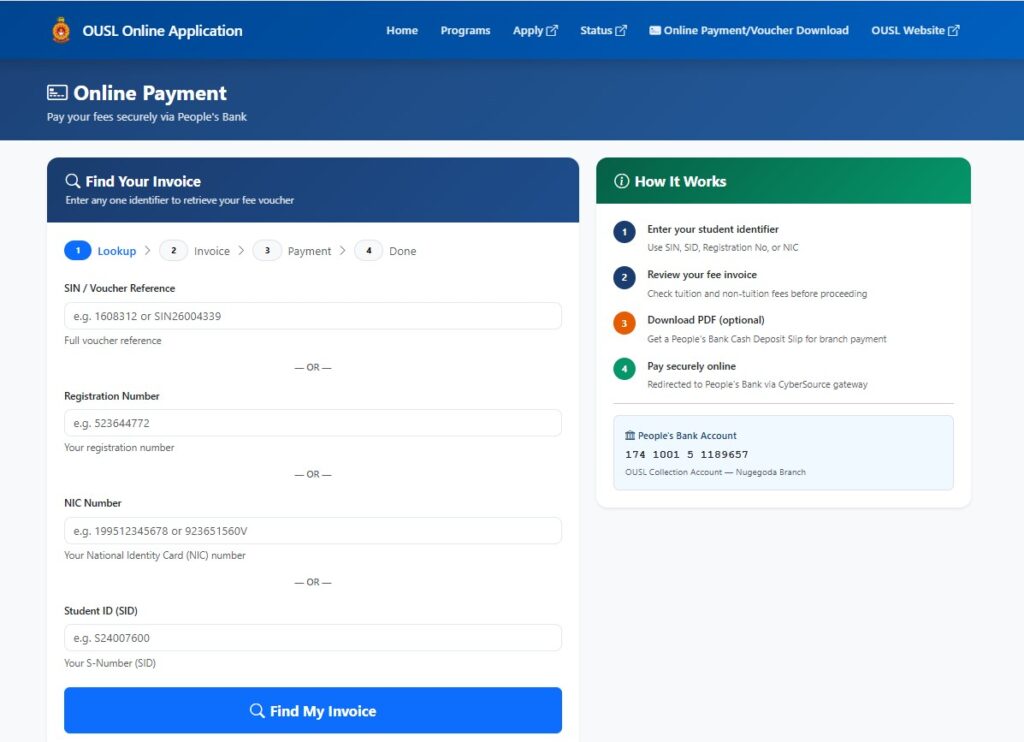
Follow these steps to get started:
| 1 | Go to the application login page at https://applyonline.ou.ac.lk/login. |
| 2 | Read the on-screen note carefully. It confirms the username and password have been sent to your mobile and email. |
| 3 | Enter your Username in the first field exactly as received. |
| 4 | Type your Password in the second field. Tap “Show password” if you want to check for typos before submitting. |
| 5 | Click the “Sign in” button to continue with your application. |
| 6 | Lost your details already? Use the “Forgot password?” link right beside the sign-in button. |
Once your application and enrollment are processed, your My OUSL Login credentials become active on the main student portal. Keep that first message safe.
My OUSL Login Student Portal?
This is the screen you will use most often. The layout is refreshingly simple.
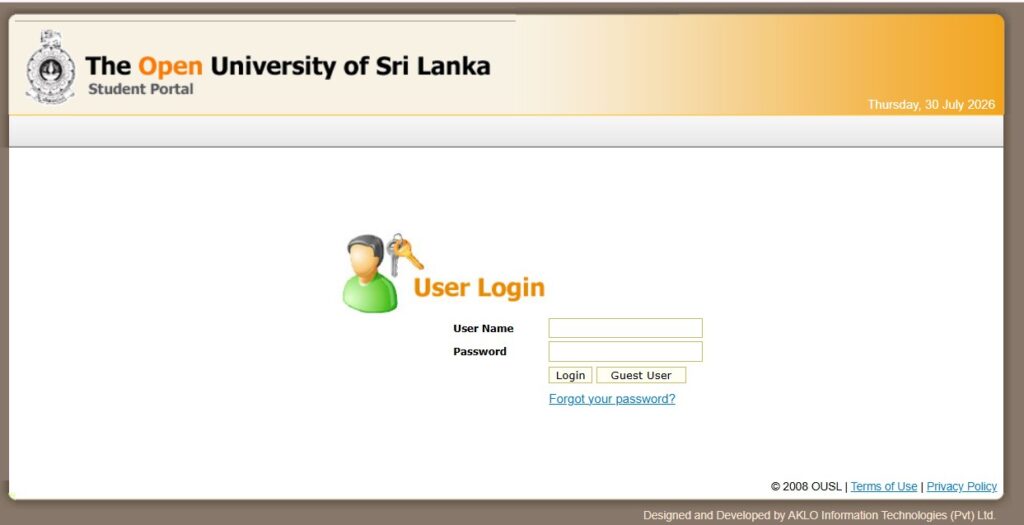
Head to the main portal and you will see a small login card with a user icon at the top. Two fields and one button do all the work.
Here is the exact My OUSL Login sequence:
| 1 | Open http://myousl.ou.ac.lk/ in your browser. |
| 2 | Type your student credentials into the User Name field. |
| 3 | Enter your Password in the field directly below. |
| 4 | Notice the “Forgot your password?” link sitting under the password box. Ignore it for now unless you are stuck. |
| 5 | Click the Login button to enter your account. |
The moment you sign in, the system loads your personalized dashboard. That is where the real activity begins.
What Can You Do After You Log In?
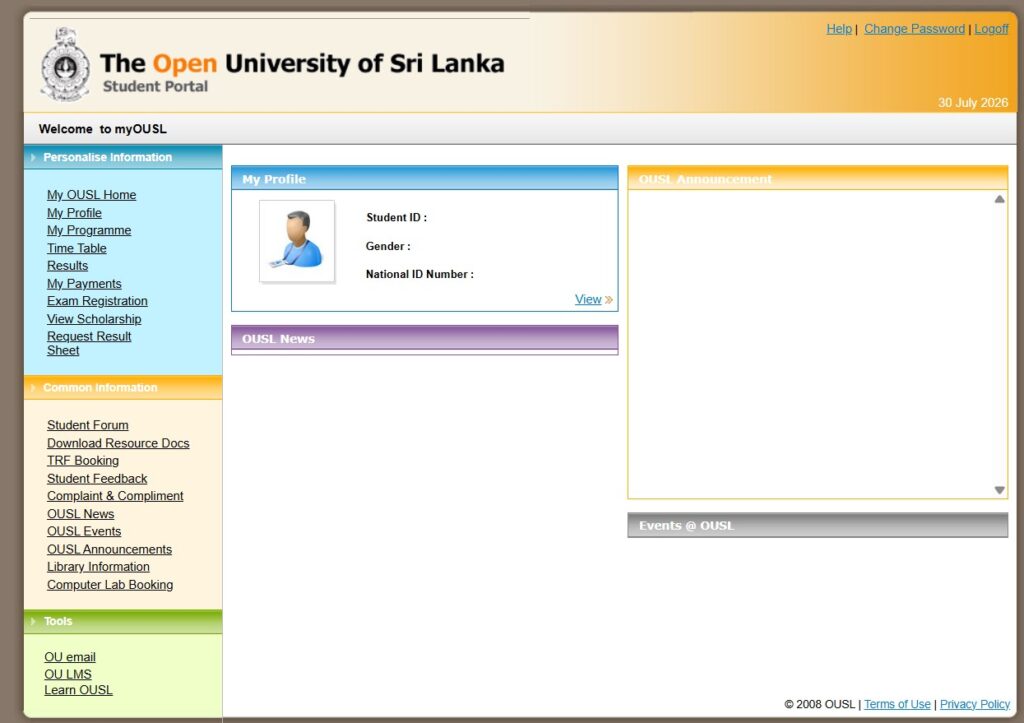
The dashboard greets you with “Welcome to myOUSL” and a full sidebar of options. Our team broke the menus down so nothing feels hidden.
You land here after every successful login: http://myousl.ou.ac.lk/indx/main/fp.aspx. Three menu groups run down the left side.
Personalise Information covers your academic life:
- My OUSL Home
- My Profile
- My Programme
- Time Table
- Results
- My Payments
- Exam Registration
- View Scholarship
- Request Result Sheet
Common Information handles everything social and administrative:
- Student Forum
- Download Resource Docs
- TRF Booking
- Student Feedback
- Complaint & Compliment
- OUSL News
- OUSL Events
- OUSL Announcements
- Library Information
- Computer Lab Booking
The Tools section links you straight to your OU email, the OU LMS, and Learn OUSL. These sit at the bottom of the sidebar for quick access.
Your profile card also shows your Student ID, Gender, and National ID Number, with a View button for full details.
Where Do You Check Your Results?
Results are the reason most students rush to the My OUSL Login screen after exams. The page is cleaner than you might expect.
Click Results in the sidebar, or go directly to http://myousl.ou.ac.lk/pers_info/resl/resl_smry.aspx. You will find three clear sections.
- Results Summary shows your overall performance at a glance.
- Credit Summary tracks credits earned across your programme.
- Grade Summary breaks down grades per course.
If you have been following student portals for a while, this three-tab split won’t come as a surprise. It mirrors how most modern universities present academic records.
What If You Forget Your Password?
It happens to everyone eventually. The good news is the fix takes under a minute.
OUSL keeps a dedicated recovery page separate from the login screen. All it needs is your Student ID.
Reset your access this way:
- Visit the recovery page at http://myousl.ou.ac.lk/indx/fogt_pass/.
- Find the “Forgot my password” heading with the padlock icon.
- Enter your User Name (Student ID) in the single input field.
- Click the submit button to send your reset request.
- Watch your registered email and mobile for recovery instructions.
You can also reach a login-linked reset screen at http://myousl.ou.ac.lk/indx/logn/fp.aspx if you get redirected during a failed attempt. Both routes lead back to the same goal: restoring your My OUSL Login.
FAQs
Is the My OUSL Login the same as the application login?
No. Applicants sign in at applyonline.ou.ac.lk/login, while enrolled students use myousl.ou.ac.lk. The credentials differ.
Where do I get my first username and password?
The application system sends them to your registered mobile number and email. Check both if one does not arrive.
Why can’t I see my results after logging in?
Results appear only once your department releases them. Open the Results Summary tab and refresh if a course looks blank.
Can I access my OUSL email through the portal?
Yes. The Tools menu links directly to OU email, OU LMS, and Learn OUSL after every login.
What if the Forgot Password page doesn’t recognize my Student ID?
Double-check the exact ID format from your enrollment message. If it still fails, contact OUSL support before repeated attempts lock you out.
Our takeaway is simple. Bookmark the portal, save your first credentials, and the My OUSL Login stops being a source of stress and becomes a two-second routine.


