


The myccri login is the front door to your entire life at the Community College of Rhode Island. We spent time inside every screen so you don’t have to guess.
For CCRI students, this single sign-in connects you to grades, schedules, email, and campus services. If you’ve been following student portals, this won’t come as a surprise — one login now runs almost everything.
Our team observed that most sign-in headaches come from one thing. People simply land on the wrong page. So we mapped each path, button by button.
Major Findings
- The myccri login runs through a secure Microsoft Entra page at experience.elluciancloud.com/ccori.
- New students must first apply through apply.ccri.edu using the “Start Application” button before an account exists.
- Locked out? Four recovery tools handle username lookup and password resets, plus a live IT Help Desk at 401-825-1112.
What Is the myCCRI Portal, and Why Does It Matter?
MyCCRI is the student portal for the Community College of Rhode Island. It’s the hub for your whole academic journey.
Once inside, you manage classes, check schedules, and reach campus tools. That’s a lot riding on one password.
Industry insiders are noting how colleges now bundle everything behind a single sign-on. CCRI follows that same pattern, linking MyCCRI, Blackboard, lab computers, and email together.
The official gateway lives at the Secure Login page. We suggest bookmarking it now — it holds every link you’ll need later.
How Do You Sign Up for a CCRI Account?
New students don’t start at a login screen. They start with an application, and that trips up a lot of first-timers.
Here’s the step-by-step sign-up flow:
| 1 | Open the application portal at apply.ccri.edu. You’ll see the welcome message “Join Our Community of Thinkers, Doers, and Achievers.” |
| 2 | Click the “Start Application” button to begin a brand-new application. |
| 3 | Already began earlier? Use the “Sign In” button under “Already started your application?” to pick up where you left off. |
| 4 | Complete your application details and submit them for review. |
Once you’re admitted, CCRI issues your account credentials. This is the moment your myccri login becomes active.
New accounts arrive with a temporary password. We’ll break down that exact format further down, because it confuses almost everyone at first.
Need a hand mid-application? A Live Chat option sits right on the apply page for quick questions.
How Do You Complete the myCCRI Login?
Once your account exists, signing in takes seconds. Our team timed it under a minute.
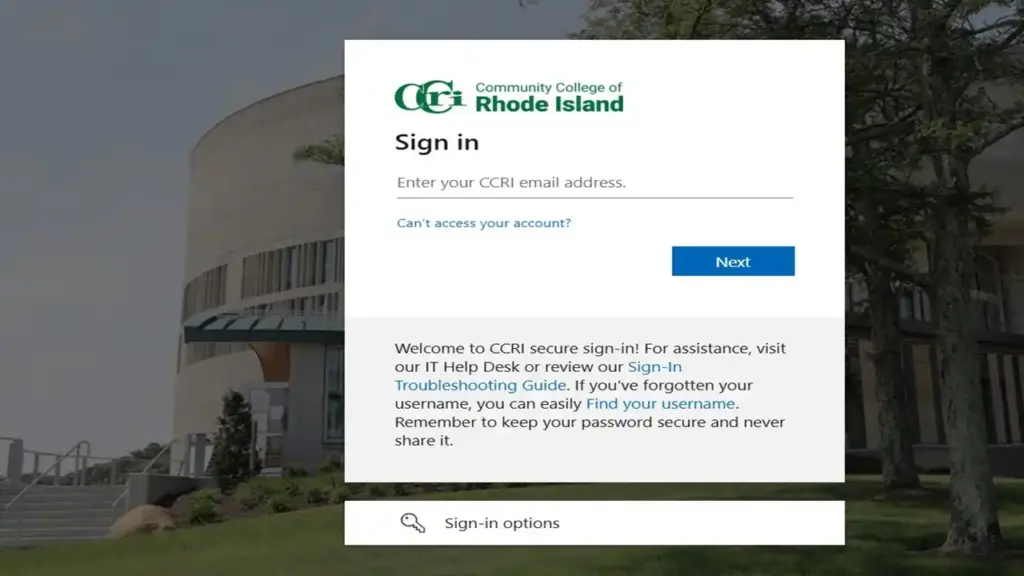
Here’s the exact myccri login process:
| 1 | Go to the MyCCRI sign-in page, powered by Microsoft Entra. |
| 2 | Enter your CCRI username or email on the “Sign in” screen. |
| 3 | Click Next, then type your password to enter the portal. |
Next, then type your password to enter the portal.
Prefer another method? A “Sign-in options” button appears below the fields for alternate credentials.
Can’t get in at all? The “Can’t access your account?” link starts the recovery flow directly. We think that placement is smart — help sits right where you need it.
How Do Students and Staff Reach Microsoft 365 Email?
Your CCRI email runs on Microsoft 365. The login page differs by role, so pick the right one.
- Students: Sign in at outlook.com/my.ccri.edu.
- Faculty and staff: Sign in at outlook.com/ccri.edu.
Both pages show the same CCRI secure sign-in welcome. Enter your credentials, then press Next. From there you get email, file sharing, and your favorite apps in one place.
What If You Forget Your Password or Username?
Forgetting login details happens to everyone. It shouldn’t cost you a class deadline.
The Secure Login page lists four recovery paths. We tested each one so you know exactly what to expect.
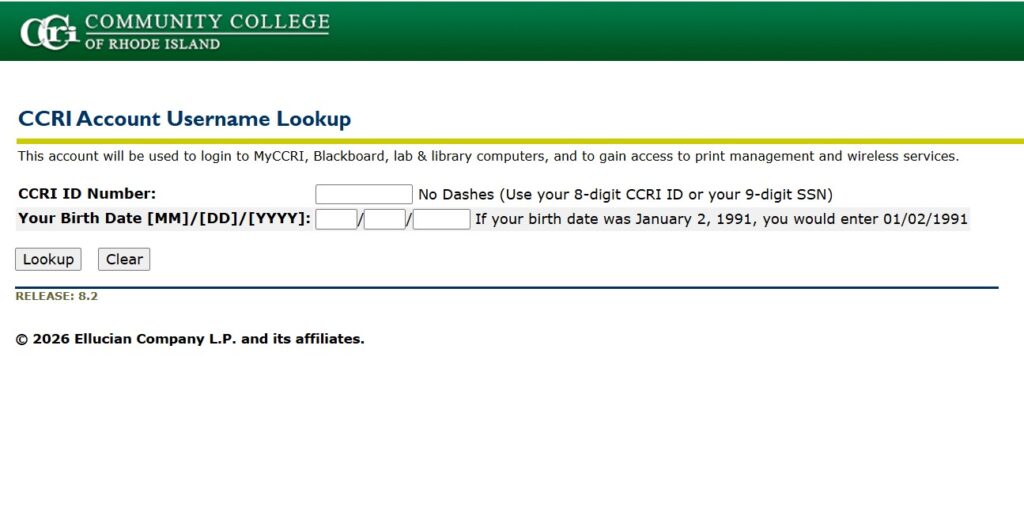
1. Find Your Username
- Open the Username Lookup tool.
- Enter your 8-digit CCRI ID (or 9-digit SSN) with no dashes.
- Add your birth date in MM/DD/YYYY format. For January 2, 1991, you’d type 01/02/1991.
2. Change Your Password
- Visit the Change Password page.
- Enter your username and current password.
- New accounts use a temporary password with a fixed format. It’s the first three letters of your username, first letter capitalized, then an underscore, then the last four digits of your CCRI ID. Example: username jdoe becomes Jdo_1234.
- Change it right away to something more secure.
3. Reset Password for Staff
- Go to the Reset Forgotten Password page.
- Type your CCRI username and click Next.
- This tool works with the Rave System, using your registered mobile number or email. No enrollment means no reset, so keep those details current.
4. Reset Password for Students
- Open the Microsoft password reset page.
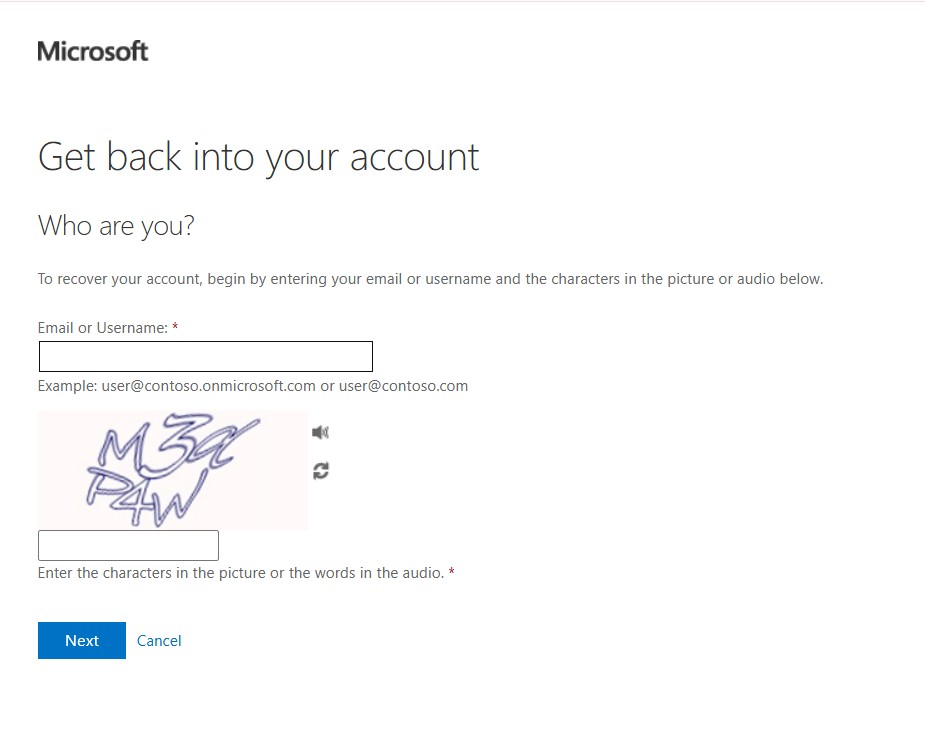
- Enter your work or school email. Personal Microsoft accounts won’t work here.
- Complete the CAPTCHA characters, then click Next to continue recovery.
Where Do You Get Live Help?
Sometimes you just need a person. CCRI keeps that option open.
The IT Help Desk answers directly:
- Phone: 401-825-1112
- Email: helpdesk@ccri.edu
- Walk-In: Knight Campus, Suite 2113
Calls or emails after closing get handled the next business day. Our analysis suggests the phone line is fastest during a lockout.
FAQs
Is the myccri login the same for new and existing students?
No. New students apply first at apply.ccri.edu, while existing students sign in at the MyCCRI portal.
What does my temporary password look like?
It’s the first three letters of your username (first capitalized),


