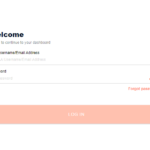
The iKamva login is the single gateway UWC students use to reach their entire academic life online. iKamva is the University of the Western Cape’s Learning Management System (LMS), built on the Sakai platform, and it hosts your lecture materials, assessments, and study resources in one place. If you’ve struggled to find the right portal or reset a forgotten password, we’ve mapped the exact steps for you.
Our team observed that most access problems come from using the wrong URL or the wrong username format. Both are easy to fix once you know the correct route.
Key Takeaways
- iKamva is UWC’s official Sakai-based LMS, accessible on desktop, laptop, mobile, and tablet.
- The official iKamva login page is ikamva.uwc.ac.za/portal/login, and password resets happen at mypassword.uwc.ac.za.
- The system is unavailable daily between 5am and 6am for scheduled maintenance.
Check Also: UNILORIN Login Portal
What is iKamva at UWC?
iKamva is the online home for UWC teaching and learning. It runs on Sakai, an open-source LMS used by universities worldwide, and it enhances face-to-face lectures rather than replacing them.
Our analysis suggests students underuse it. Lecture material, self-study resources, reflection tools, and assessments all live here, and you can reach them from any device.
You’ll find it at ikamva.uwc.ac.za. UWC also documents the platform on its official Online Platform – iKamva page.
One practical detail matters: the system is offline every day from 5am to 6am. Plan your early-morning study sessions around that window.
How do you sign up for iKamva?
You don’t create an iKamva account yourself. Your iKamva login credentials are issued by UWC the moment your student registration is processed.
If you’ve been following how South African universities manage access, this won’t come as a surprise: your student number becomes your username, and your network password ties into the wider UWC system.
Here’s how to get set up for the first time:
- Register as a UWC student. Complete your admission and registration through UWC’s academic administration first.
- Receive your credentials. UWC issues your student number (your username) and a temporary password through your official student communication.
- Set your password. Visit mypassword.uwc.ac.za to activate or change your first password if prompted.
- Go to the login page. Open ikamva.uwc.ac.za/portal/login.
- Sign in and confirm access. Enter your credentials, and check that your enrolled modules appear on your dashboard.
If a module is missing, contact your faculty office. Enrolment, not iKamva, controls which sites you see.
Check Also: Ezhishi Login
How do you complete the iKamva login?
The iKamva login takes under a minute once your account is active. Use the official portal every time to avoid phishing pages that copy the UWC look.
- Open the official portal. Go to ikamva.uwc.ac.za/portal/login.
- Enter your username. This is your UWC student number.
- Enter your password. Type your current network password carefully.
- Use “Show Password” if needed. The login page has a Show Password option to catch typos before you submit.
- Click Log in. You’ll land on your iKamva dashboard with your active module sites.
- Check your device compatibility. The iKamva login works on desktops, laptops, mobile phones, and tablets — no separate app is required.
We found that a cleared browser cache fixes most stubborn login loops. Try that before anything else.
How do you reset a forgotten iKamva password?
Reset your iKamva password at UWC’s dedicated tool: mypassword.uwc.ac.za. The same reset covers your iKamva, Student Portal, Library, and Wi-Fi logins because they share one network identity.
The single most common mistake we see: adding the email domain to your username. Don’t.
- Open the reset page. Go to mypassword.uwc.ac.za.
- Accept the ICT policy. Click OK to acknowledge UWC’s acceptable-use terms.
- Enter your username correctly. Type it without @uwc.ac.za or @myuwc.ac.za — the domain breaks the reset.
- Click Send. An email goes to the address linked to your account.
- Open the email and click the link. Follow it to complete the reset.
- Create a new password. Set a strong password, then return to the iKamva login page to sign in.
If no email arrives, check your spam folder first, then contact UWC Student IT Support. A wrong username format is usually the culprit.
What can you access after logging in?
Your dashboard is the control center for every module you’re enrolled in. Each course appears as its own site inside iKamva.
After the iKamva login, you can reach:
- Lecture materials — slides, notes, and readings for self-study.
- Assessments — quizzes, tests, and assignment submissions.
- Reflection and feedback tools for tracking your progress.
- Announcements from lecturers and your faculty.
- Career Xplora, UWC’s 24/7 job and opportunity resource — zero-rated when you connect through the UWC VPN.
The zero-rating point is worth repeating. Career Xplora access via the UWC VPN does not consume your data, which matters for students managing tight budgets.
Why does the iKamva login sometimes fail?
Most iKamva login failures trace back to four fixable causes. Our team observed these repeatedly across student support queries.
- The 5am–6am maintenance window. The system is deliberately offline then. Wait an hour.
- Wrong username format. For password resets, drop the email domain. For login, use your student number.
- Outdated browser cache. Clear it, or try an incognito/private window.
- Expired password. Network passwords rotate — reset yours at mypassword.uwc.ac.za.
Rule out these four before escalating. Each one takes less than two minutes to check.
Check Also: Coltech Login
FAQs
What is the official iKamva login URL?
The official portal is ikamva.uwc.ac.za/portal/login. The main landing page sits at ikamva.uwc.ac.za. Bookmark the login page to avoid fake copies.
What is my iKamva username?
Your username is your UWC student number. For password resets, enter it without the @uwc.ac.za or @myuwc.ac.za domain.
How do I reset my iKamva password?
Go to mypassword.uwc.ac.za, accept the policy, enter your username, and click Send. Then follow the emailed link to set a new password.
Why can’t I log in to iKamva right now?
The system is unavailable daily from 5am to 6am for maintenance. Outside that window, check your username format, clear your browser cache, or reset your password.
Can I use iKamva on my phone?
Yes. The iKamva login works on mobile phones and tablets as well as desktops and laptops, straight from your browser. No separate download is needed.
Does iKamva cost data to use?
Standard iKamva use runs over your normal connection. Career Xplora is zero-rated through the UWC VPN, meaning that specific service won’t use your data.
Where do I go if the reset email never arrives?
Check your spam folder, confirm you left off the email domain, then contact UWC Student IT Support. A mistyped username is the most frequent reason emails don’t send.
Always reach iKamva through the official UWC addresses listed above. Save the login page and the password reset tool now, so your next iKamva login takes seconds — not a scramble before a deadline.