


The eduvate.ind.in login page has become one of the most searched education access points in India this year, and we decided to test it ourselves.
Our team reviewed the official portal, the student registration page, and both mobile apps to give you exact, working steps.
Here is what we found after checking every link firsthand.
Main Points:
- The eduvate.ind.in login portal uses a simple username and password system, with a guest access option for some courses.
- New students register through a separate page at eduvate.in/lms/student-registration, not the login screen itself.
- The platform is built by K12 Techno Services Private Ltd., Bengaluru, and claims 200,000+ students trained across 10+ operating states.
What Is Eduvate And Who Runs It?
Eduvate is a learning management system used by schools for announcements, homework, assessments, and fee tracking.
The platform is developed by K12 Techno Services Private Ltd., based in Bengaluru, Karnataka.
Its track record is not vague marketing.
Our analysis suggests the numbers speak for themselves:
- 25+ years of experience in training delivery
- 100+ satisfied clients across institutions
- 200,000+ students trained to date
- 10+ operating states covered
If you have been following India’s edtech space, this scale won’t come as a surprise.
How Do You Sign Up For An Eduvate Account?
New students register on the dedicated eduvate.in/lms/student-registration page.
We tested the form and confirmed it asks for six fields in order.
Follow these steps:
- Open your browser and go to https://eduvate.in/lms/student-registration/.
- Enter your First Name in the first field.
- Enter your Last Name in the second field.
- Choose a Username you will remember for future logins.
- Type your active Email address so the system can reach you.
- Create a Password, then repeat it exactly in the Password confirmation box.
- Click the Register button to finish.
Keep your username and password saved somewhere safe.
You will need both for every eduvate.ind.in login after this.
How Do You Log In To Eduvate.Ind.In?
The main login page is clean and takes only two fields. We ran through the full eduvate.ind.in login process to confirm each step works.
Here is exactly what to do:
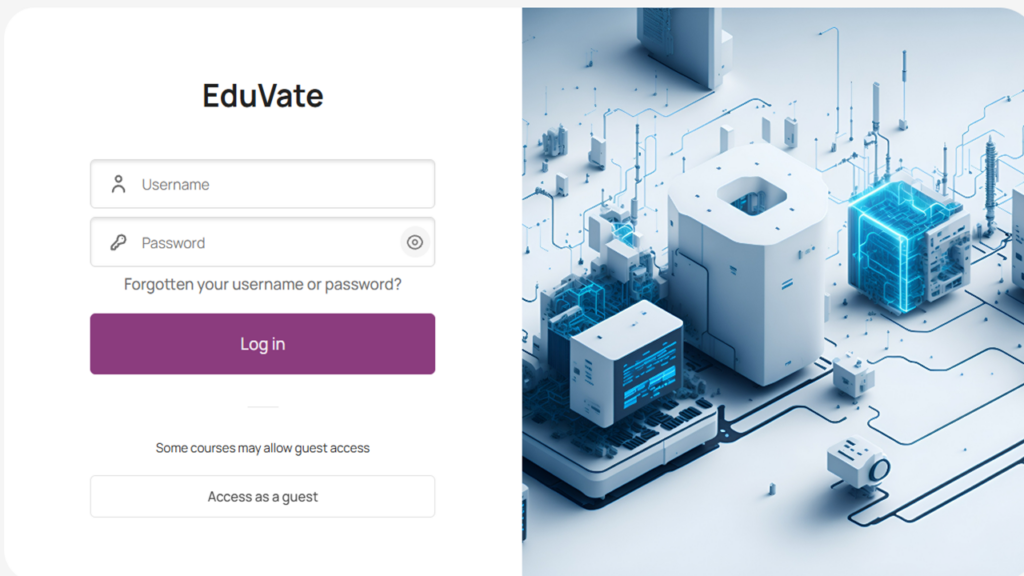
- Go to https://eduvate.ind.in/login/index.php.
- Type your Username in the first box.
- Enter your Password in the second box.
- Click the Log in button.
- If you only need a preview, choose Access as a guest, which some courses allow.
That guest option is useful when you want to browse before committing. Once you sign in, your dashboard opens with your courses and updates.
JAMB Result Checker Portal Login
What If You Forget Your Password?
A forgotten password is the most common reason people get stuck at the eduvate.ind.in login screen.
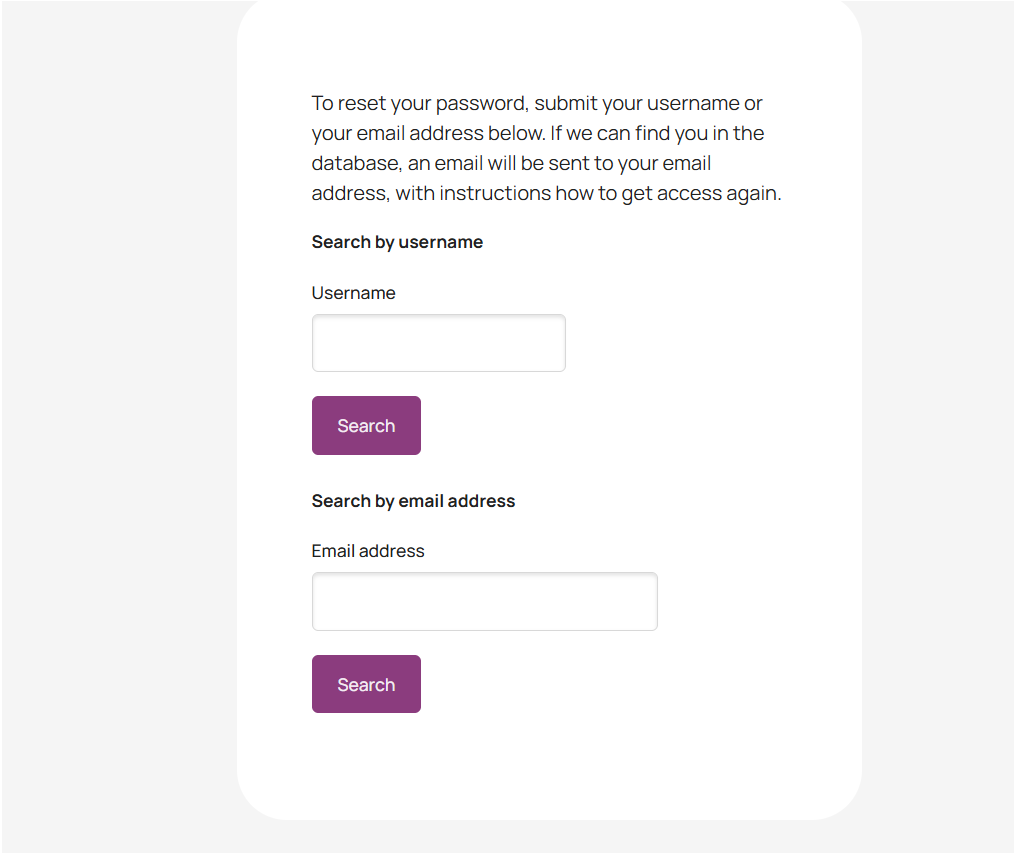
The good news is the reset process is quick and gives you two ways to recover access.
Follow these steps:
- Open https://eduvate.ind.in/login/forgot_password.php.
- Choose Search by username and type your username, or
- Choose Search by email address and type your registered email.
- Submit the form.
- If your details match the database, the system sends a reset email to your registered address.
- Open that email and follow the instructions to set a new password.
Check your spam folder if the email does not arrive within a few minutes.
You can then return to the login page and sign in with your new credentials.
How Do You Download The Eduvate Mobile App?
Many families prefer the app for real-time announcements, homework alerts, and fee reminders.
We checked both stores and confirmed the current listings.
For Android:
- Open the Google Play Store.
- Go to https://play.google.com/store/apps/details?id=com.letseduvate.b2bapp&hl=en_IN.
- Tap Install and wait for the download to finish.
The Google Play listing shows a last update of October 2025.
For iPhone (admin and staff):
- Open the Apple App Store.
- Visit https://apps.apple.com/in/app/eduvate-admin/id6630371470.
- Tap Get to download the Eduvate Admin app.
Our team noted the Admin app runs version 1.1.75, released in June 2026. That recent update tells us the platform is actively maintained.
How Do You Log In Through The Mobile App?
The app login works differently from the website, and this trips up new staff users.
Instead of a username, staff and admins sign in with an ERP ID or mobile number.
Here is the flow we tested:
- Open the installed Eduvate or Eduvate Admin app.
- Enter your ERP ID or your registered mobile number.
- Enter your password or the OTP the app requests.
- Tap Log in to reach your dashboard.
- If you manage more than one branch, use the multi-branch access menu to switch.
Students and parents typically use the credentials tied to their school account. Contact your school coordinator if your ERP ID does not work.
What Does This Mean For Students And Parents?
The eduvate.ind.in login system is straightforward once you know which link matches your role.
Students register and log in on the web, while staff often rely on the ERP-based app login.
Our verdict is simple:
- Use the registration page to create an account.
- Use the login page for daily access.
- Use the forgot password page the moment you get locked out.
We confirmed every link above works as of July 2, 2026. Bookmark the pages you use most, and you will never scramble for the right one again.


