


What Is eMhare and Why Does It Matter?
eMhare is the University of Zimbabwe’s online student registration system. It handles everything from first-time applications to semester course registration.
Our analysis suggests most access problems come from one thing: using the wrong username format. We found that students often type their name instead of their Registration Number.
That single mistake blocks the eMhare login more than any server issue. So we’ll fix that early in this guide.
Industry insiders following UZ’s digital rollout won’t be surprised. The portal has grown into the single hub for admissions, results, and profile edits.
Summary Points
- The eMhare login portal is the official gateway for University of Zimbabwe applications, course registration, and results, hosted at emhare.uz.ac.zw.
- Your username is your Registration Number, and your default password is your surname in UPPERCASE — which you should change straight after your first sign-in.
- New applicants start at the New Application page, while forgotten passwords are reset using the email-based recovery tool.
If you’ve been searching for a straight answer on how the eMhare login actually works, this is the guide we wish existed sooner.
We spent time inside the University of Zimbabwe portal, checked every live page, and mapped the exact steps. Our goal here is simple: no guesswork, no dead links.
Let’s walk through it together.
Start a New Application (Signup) on eMhare?
New students don’t “sign up” with a random account. Instead, you begin an official application through the portal’s welcome page.
Here’s the part that trips people up. You must prepare your documents before you start.
Have these ready as PDF files:
- Certified copy of your Birth Certificate
- Certified copy of your National ID or Passport
- Ordinary Level certificate (combine multiple sittings into one PDF)
- Advanced Level results (combine multiple sittings into one PDF)
- Proof of payment of the application fee, showing your full name
Steps to start your application:
| 1 | Go to the New Application page. |
| 2 | Read the Notice to Applicants and confirm you attended Career Guidance. |
| 3 | Choose your application type — Undergraduate, Postgraduate, Diploma, MBA, Education, or MPhil/PhD. |
| 4 | Fill in your Personal Details accurately. |
| 5 | Enter your O-Level and A-Level qualifications. |
| 6 | Select your Programme Choices. |
| 7 | Upload your prepared PDF documents. |
| 8 | Review & Submit your completed form. |
One tip from us: double-check that names on every document match. Small spelling gaps cause big delays.
Need a break mid-way? You can save and return later.
Use the Resume Application tool with your National ID plus either your Application ID or Date of Birth.
Complete the eMhare Login?
Once you’re a registered student, the eMhare login gives you your dashboard.
This is where the username rule matters most. Get it right and you’re in within seconds.
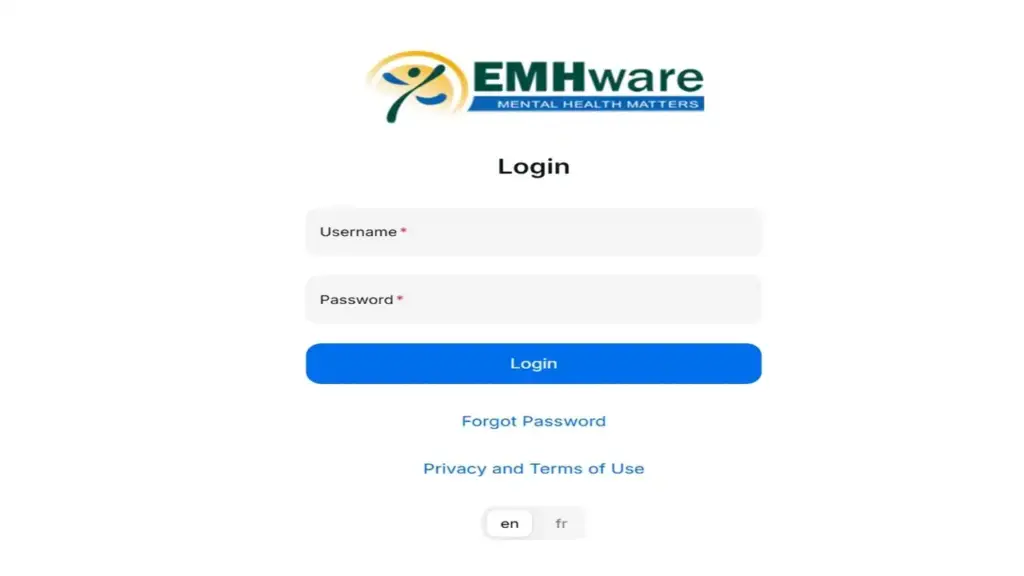
Steps to log in:
| 1 | Visit the official eMhare Login page. |
| 2 | Enter your Username — this is your Registration Number. |
| 3 | Enter your Password — for first-timers, this is your surname in UPPERCASE (capital letters). |
| 4 | Complete the reCAPTCHA verification. |
| 5 | Click Login. |
We strongly recommend changing that default password right away. A default surname password is easy to guess and puts your records at risk.
Once inside, you’ll see links to edit your profile, view online results, check approved courses, and start registration.
That dashboard is your control center for the whole semester.
What Should You Do If the eMhare Login Fails?
Our team observed a few common blockers. Most are quick fixes.
- Wrong username: Use your Registration Number, not your name or email.
- Wrong password: First-time users need their surname in capitals. If you already changed it, use the new one.
- reCAPTCHA errors: Refresh the page and complete the check again.
- Browser trouble: Clear your cache or try a different browser.
If none of that works, the issue is likely your password, not the site. That’s your cue to reset it.
Reset a Forgot eMhare Password?
Forgotten passwords are the most common reason the eMhare login stalls. The good news? Recovery is email-based and fast.
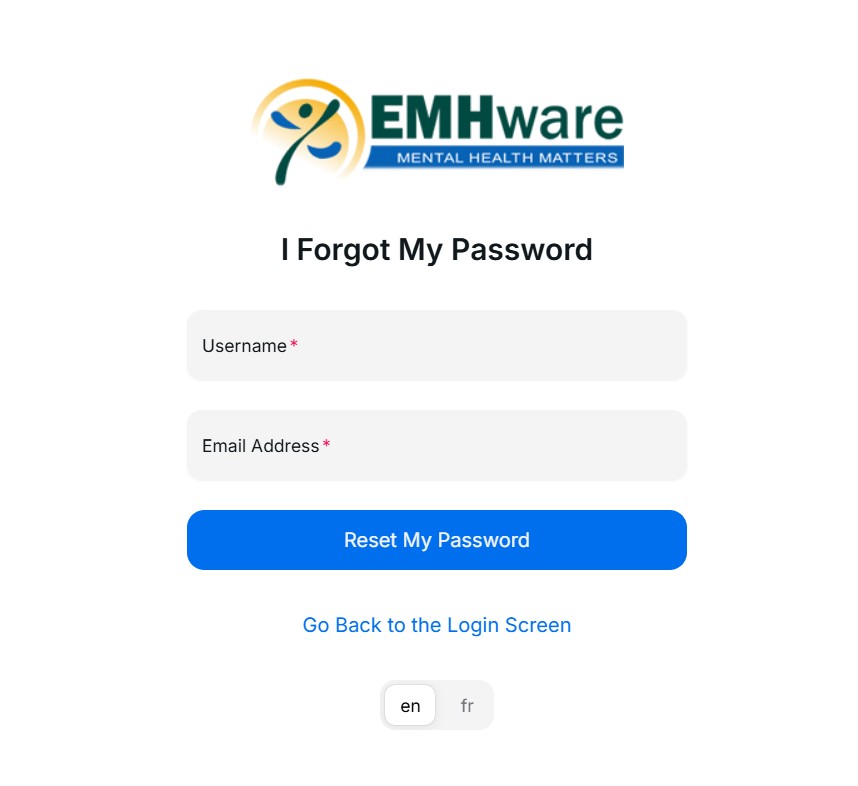
Steps to reset your password:
| 1 | Open the Forgot Password page. |
| 2 | Enter the email address linked to your eMhare account. |
| 3 | Click Recover Password. |
| 4 | Check your inbox (and spam folder) for the recovery message. |
| 5 | Follow the instructions to set a new, secure password. |
| 6 | Return to the login page and sign in. |
A quick reminder from us: use the exact email tied to your account. A mismatched address is the top reason recovery emails never arrive.
Register for Courses After Login?
Logging in is only half the job. Course registration is the real goal each semester.
You register online after paying the required fees. The official UZ Registration page confirms this process.
Steps to register your courses:
| 1 | Complete the eMhare login with your credentials. |
| 2 | View your programme’s compulsory courses. |
| 3 | Tick the checkboxes for the courses you want, then click Register. |
| 4 | Need optional or carried courses? Click “Add More Courses” and search by course code or programme. |
| 5 | Confirm your selections are correct, then click Finish. |
| 6 | Log out using the link near your profile photo. |
One thing worth knowing: only courses you’re eligible for will appear. That safeguard keeps your registration clean.
For a fuller walkthrough, the official How to Register guide breaks it down step by step.
After registration, collect your student ID. A valid ID confirms your enrollment and unlocks campus facilities.
FAQs
What is my eMhare login username?
Your username is your Registration Number — not your name or email address.
What is the default eMhare password?
For first-time users, it’s your surname typed in UPPERCASE letters. Change it immediately after your first login.
Where do I reset my eMhare password?
Use the official Forgot Password page and enter your registered email address.
Can I save my application and finish it later?
Yes. Use the Resume Application tool with your National ID and either your Application ID or Date of Birth.
Why won’t my eMhare login work?
Most often, it’s the credentials. Confirm your Registration Number and password, complete the reCAPTCHA, and try a different browser if needed.
Do I need to pay before registering courses?
Yes. Students register after paying the required fees at the start of each semester.


