


School communication breaks down fast. Notices get lost, fee receipts go missing, and parents hear about exam dates a day too late. A single cloud platform fixes most of that by putting attendance, homework, fees, and messages in one place. Here is how Skolaro Login works, section by section, with no mixing of topics.
What is Skolaro
Most school software promises a lot and delivers a clunky login page. Skolaro takes a different route by acting as one shared system for everyone tied to a school.
Skolaro is a cloud-based school management platform built by Buzzyears Inc. It connects every major group inside an institution instead of serving just one department.
It is built for these users:
- Admins who manage school-wide records and settings
- Teaching staff who mark attendance and post homework
- Non-teaching staff, accountants, and librarians
- Parents tracking their children’s progress
- Students attending classes and submitting work
The feature set is wide and specific:
- Feeds showing recent posts from all linked groups
- Attendance history and current status per child
- Homework with submission and teacher evaluation
- Timetable generated class-wise for each student
- Report cards with marks and grades
- Fees with online payment and auto-generated receipts
- Virtual classes with full schedule access
- Messaging with or without attachments
The platform describes itself as one that “takes care of the needs of all major stakeholders and departments of your school”. That is the reason a single account works across web and mobile.
Skolaro Login
Login looks trivial until you land on the wrong portal and waste ten minutes. The official entry point matters more than people think.
Sign in using these steps:
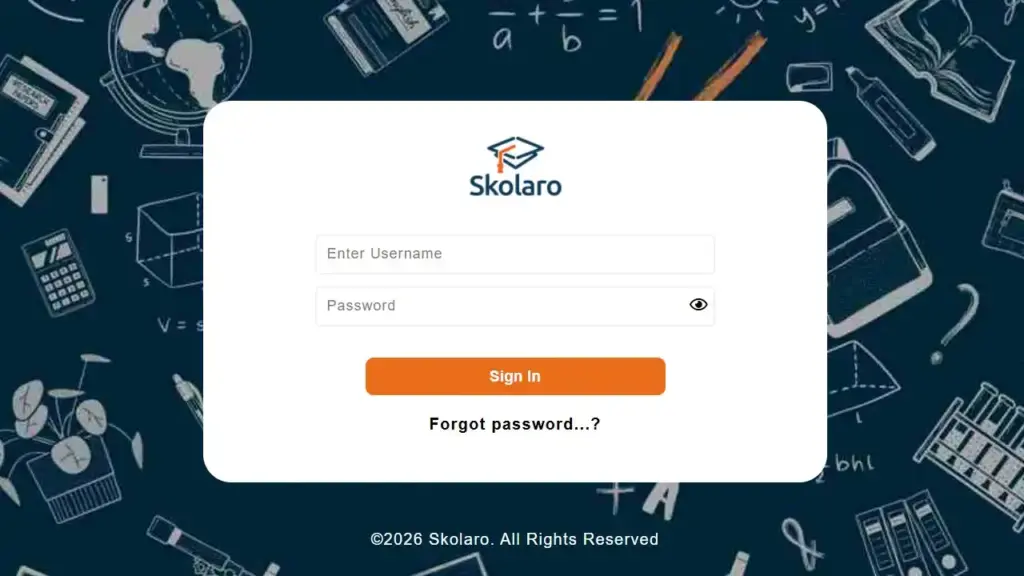
- Open the official portal at apps.skolaro.com.
- Locate the Sign In panel on the page.
- Enter your username in the first field.
- Type your password in the next field.
- Click Sign In to reach your dashboard.
Important: Some schools use a school-specific login URL, such as apps.skolaro.com/school/[code]/login. On those pages you can also choose Login with OTP instead of a password.
If your credentials fail, the portal shows an “Invalid” message. That usually means a typo in the username, not a broken account.
Skolaro sign up
Here is where expectations need adjusting. Skolaro is not a public service you register for on your own.
Follow this process to get access:
- Confirm your school uses Skolaro as its management system.
- Contact your school administrator or office, since accounts are created by the school.
- Provide the student or staff details the school requests.
- Receive your unique username and password issued by the school.
- Go to apps.skolaro.com and sign in with those credentials.
- Update your password after the first login for safety.
Bold reminder: Every parent, teacher, and student gets a unique login tied to one school. There is no open self-registration form, so requests for credentials always go through the institution.
Skolaro forgot password
Forgotten passwords are the single most common support issue, and the reset depends entirely on your email being correct in the system.
Reset your password with these steps:
- Open the login page at apps.skolaro.com.
- Click the Forgot password…? link below the form.
- Enter your registered email address or username.
- Submit the request to trigger a reset email.
- Open the email and follow the reset link.
- Set a new password and sign in again.
Important: Reset emails fail when the school has the wrong email on file. One reviewer reported requesting a reset “millions of times” with no email arriving. If that happens to you, do not keep retrying. Write to support@skolaro.com with your school ID, and the team can issue fresh credentials.
Skolaro app
A web portal is fine until parents want notifications on their phone. That is what the mobile app handles.
Key facts about the app:
- It is available on Google Play and the Apple App Store.
- The iOS version needs iOS 13.0 or later and is 125.6 MB.
- The Android app has 100K+ downloads and lists an Education category.
- It runs on iPhone, iPad, and iPod touch, with a macOS option on Apple M1 chips or later.
What you can do inside the app:
- Check activity feeds and class discussions
- View attendance, calendar, and timetable
- Read and send inbox messages
- Access report cards and grades
- Pay fees online and download receipts
A practical warning. App ratings sit around 2.3 on Google Play and 2.8 on the App Store, with recurring complaints about feeds not refreshing and iOS notifications dropping[3]. One user noted you sometimes have to “logout and log back in to refresh the feed”. Keep the app updated, since most releases ship as “Bug Fixes and Performance Improvements”.
LAHS Skolaro login
Generic apps confuse parents who expect their own school’s branding. Skolaro solves this with school-specific app builds, and LAHS is one of them.
Log in to the LAHS app this way:
- Search for LAHS on the Apple App Store, listed as the “LAHS Official App”.
- Install the app on your iPhone or iPad.
- Open the app and go to the login screen.
- Enter the username and password issued by the school.
- Tap Login, or pick Login with OTP if your school enables it.
- For credential issues, contact your school office or support@skolaro.com.
Bold note: LAHS runs on the same Skolaro engine by Buzzyears Inc. The login flow matches the main portal, so your account works the same way.
FAQs
1. Is Skolaro free for parents?
The app is free to download on both stores. Fees you pay inside the app are school charges, not Skolaro charges.
2. What is the official Skolaro login website?
The portal is apps.skolaro.com. Some schools use a custom URL under that same domain.
3. Can I create a Skolaro account myself?
No. Accounts are issued by your school, since each login is tied to one institution.
4. Why is my password reset email not arriving?
The school may have an incorrect email on file. Email support@skolaro.com with your school ID for new credentials.
5. Who built Skolaro?
It is developed by Buzzyears Inc, and the app store listing names the developer as Ashish Dixit.
see Also:


